Mind Mapping in Miro (2026): We Built One by Hand and With AI
Short answer: Miro's mind map tool is one of the fastest ways to build a mind map with a team. Pick one of six layouts, type the centre topic, then press Tab for a sub-idea and Enter for the next one; the map re-spaces itself as it grows. It works on the Free plan. The one catch we found: when we asked Miro's AI to add ideas to a map we had built by hand, it couldn't add true mind-map nodes, so the new ideas don't move or collapse with the branch. Use AI to start a map, and the keyboard to grow one.
We tested on 23 November 2026, on Miro's Free plan, in Chrome on Windows 11. The map belongs to Brewly, a made-up coffee subscription startup planning its next quarter.
Two ways to start a mind map in Miro
- By hand, with the Mind map tool. Open "Tools, Media and Integrations" (the + at the bottom of the left toolbar), search for "Mind map", and pick a layout. This is what this article tests.
- With AI. Type a request into Sidekick's prompt bar and Miro draws a whole mind map for you. We tested that separately in our Intelligent Canvas test, where one prompt produced a five-branch map in about 90 seconds.
Step 1: pick a layout
The Mind map tool offers six layouts: curved or straight branches, growing to the right, downwards, or out to both sides.
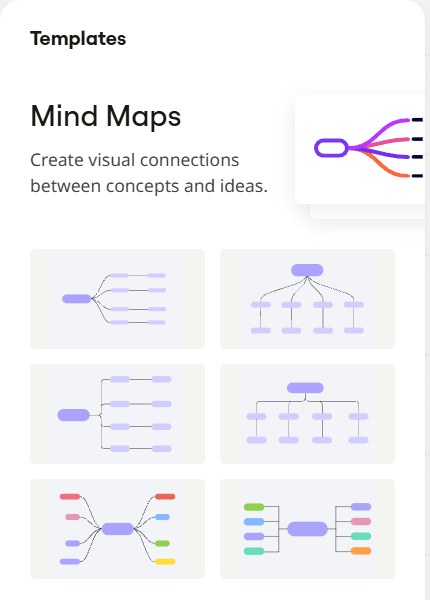
We chose the two-sided curved layout, which is the classic brainstorming shape. Miro dropped it on the board as 17 objects: a centre topic, eight empty branches and the eight curved connectors between them.
Step 2: type your ideas
Double-click any node and type. We set the goal in the centre, "Brewly: 1,000 subscribers by June", and gave each branch one area of work:
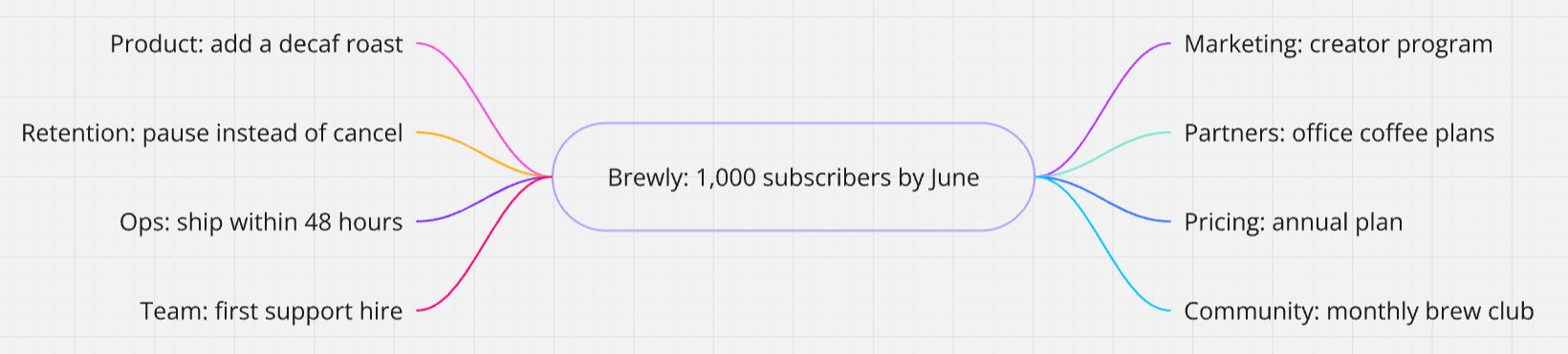
Each branch grew to fit its text, and every branch kept its own colour. Nothing needed manual resizing.
Step 3: grow the map with Tab and Enter
Click a branch to select it and Miro shows what you can do next: a + on the outer side to add a sub-idea, dots above and below to add a sibling, and a small toolbar for colour, bold, links and translation.
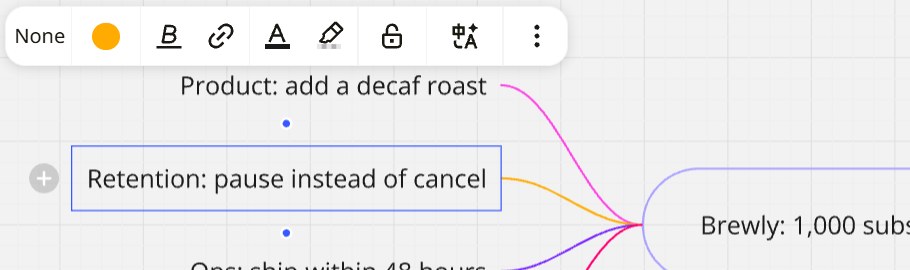
The keyboard is faster than the handles:
| Key | What it does |
|---|---|
| Tab | Adds a sub-idea under the selected node |
| Enter | Adds the next idea at the same level |
| Escape | Stops editing |
With "Retention" selected, we pressed Tab and typed three ideas, pressing Enter between them: "Survey people who cancel", "Skip-a-month button" and "Win-back email after 30 days". Miro pushed the Retention branch outwards and re-spaced the whole map so nothing overlapped. That automatic re-layout is what makes Miro's tool pleasant for live brainstorming: nobody has to stop the meeting to tidy the board.
Step 4: ask AI to expand a branch
Next we selected the "Marketing: creator program" branch, opened Sidekick and asked:
Add three specific sub-ideas to the selected Marketing branch of this mind map, as child nodes.
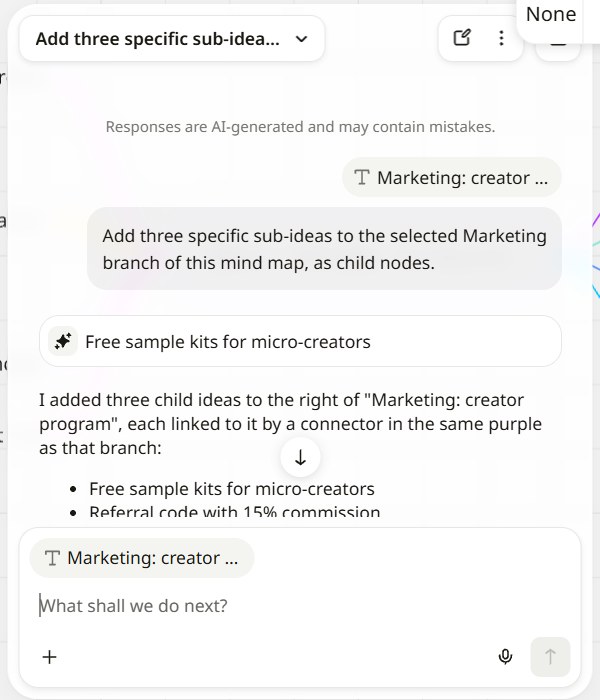
The ideas were good: "Free sample kits for micro-creators", "Referral code with 15% commission" and "Monthly creator brew-along video". But Sidekick was clear about how it had added them:
They're text items with connectors, not native mind map nodes, because the board wouldn't let me add nodes inside the existing mind map. They look like part of the branch, but they won't move or collapse with it.
You can see the difference on the finished board: the hand-built ideas hang off Miro's curved mind-map connectors, while the three AI ideas are joined with straight lines.
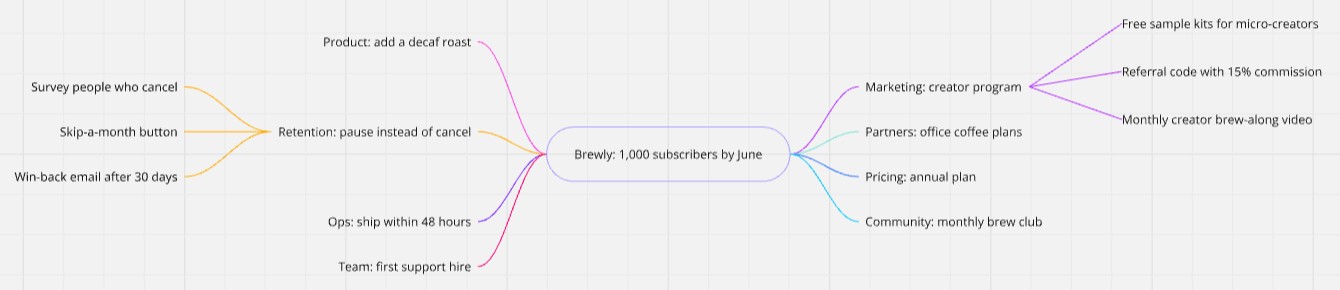
What to do about it: if you want AI ideas to be part of the map, copy them in by hand with Tab and Enter, which takes seconds; or let Sidekick build the whole map from the start, as it did in our other test, where every branch was a real node. We'd still credit Sidekick for telling us rather than leaving us to find out later.
The centre topic's settings
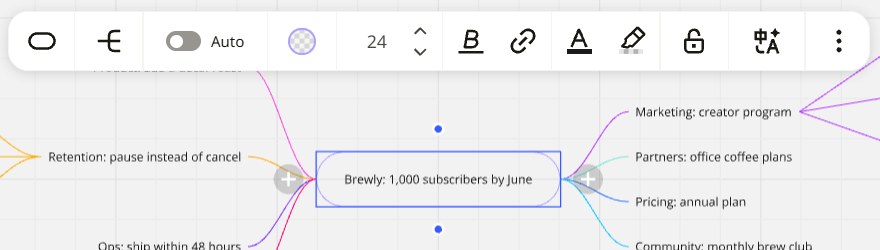
Select the centre topic and you get controls for the whole map: the node shape, curved or straight branches, an Auto layout switch, font size, and the same text and translation tools.
Is Miro good for mind mapping?
Yes, especially with a team. Its strengths:
- Speed: six layouts and Tab and Enter shortcuts get a map built as fast as people can talk.
- Automatic layout: the map re-spaces itself as it grows, so it stays readable during a live session.
- Everything on one board: the map can sit next to the timeline, sticky notes and docs it leads to. In our Intelligent Canvas test, Sidekick turned a mind map into a dated Timeline on the same board.
- Free to start: the Mind map tool works on the Free plan.
Know the limits:
- AI additions to a hand-built map don't join it. Add them yourself, or start the map with AI.
- The Free plan has 3 editable boards. If you keep many brainstorms, Starter ($8 per member a month billed yearly, or $10 monthly) gives you unlimited boards.
Verdict
Miro's mind map tool is quick, tidy and genuinely collaborative: the keyboard shortcuts and automatic re-spacing let a team build a map as fast as it can think. AI is a strong way to start a map, but don't expect it to slot ideas into a map you've already built. A few keystrokes fix that.
Build a mind map in Miro for freeRelated
- Docs, Slides and Tables in Miro, tested
- Flowcharts in Miro, built with AI
- Miro Flows: AI workflows that turn notes into tasks
- Miro's Intelligent Canvas and Sidekick, tested
- Mermaid diagrams in Miro, tested
- Our full Miro review and pricing
Article by Sohail Akhtar, Founder of TheToolsVerse. Tested on 23 November 2026 on Miro's Free plan, in Chrome on Windows 11, using a made-up startup. Claude, the AI assistant we use at TheToolsVerse, ran the test in a browser on our Miro account; the screenshots come from that session. Plan prices come from Miro's pricing page, read the same day.
Disclosure: TheToolsVerse is a Miro affiliate and partner. We earn a commission if you subscribe through our links, and Miro may pay us for content. Miro did not review or edit this article. How paid placements work.
Some links may be affiliate links. We may earn a small commission at no extra cost to you.
Related Articles
Explore more guides and reviews from our experts.