How to Use Amplemarket MCP in Claude and ChatGPT: Prospecting and Account Research, Step by Step
Disclosure
Paid partnership with Amplemarket. TheToolsVerse is an Amplemarket partner: links to Amplemarket in this guide are partner links, and we may earn a commission and a content reward from Amplemarket if you sign up. We are partners, not Amplemarket employees, and we don't speak for the company. The setup steps and tool names come from Amplemarket's own documentation, checked on 31 October 2026.
Short answer: Amplemarket MCP connects your Amplemarket account to Claude, ChatGPT, Cursor and other AI assistants. You sign in once, with no API key, and from then on you can search for prospects, research accounts, enrich contacts and build lead lists by asking for them in plain English, using your own Amplemarket data and your own permissions.
Most sales reps already use an AI assistant for the thinking around outbound: researching a company before a call, drafting a first line, working out an angle for a hard account. The problem is that the assistant has never seen your sales data. So you research in one tab, search in Amplemarket in another, copy results back into the chat and lose the thread every time. MCP removes that loop.
We run our own research the same way. TheToolsVerse connects its data sources to Claude through MCP and asks questions instead of exporting spreadsheets. That way of working is what Amplemarket MCP brings to prospecting, so this guide is written from that habit: what to set up, which prompts to use, and what to check before you trust an answer.
What Amplemarket MCP actually is
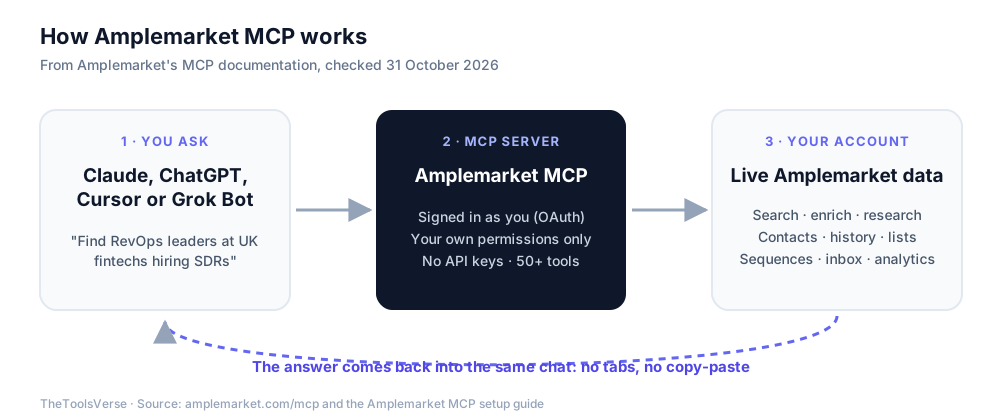
MCP stands for Model Context Protocol, an open standard that lets an AI assistant use tools and data outside the chat. Amplemarket runs an MCP server that exposes its product to any assistant that supports the standard. According to Amplemarket's documentation, that server offers more than 50 tools, covering:
- People and company search, with the same filters as Amplemarket's Searcher
- Enrichment of people and companies
- Accounts and contacts, including activity history and account research
- Lead lists, sequences and workflows
- Inbox, tasks, Duo Copilot recommendations and analytics
Two design choices matter for sales teams:
- Every action runs under the rep's own login. Each person signs in with their own Amplemarket account through OAuth, and the assistant can see and do only what that person can. There are no shared API keys.
- The data is live. Searches, contact history, sequences and analytics come straight from the account, so you are never working from an export that went stale last week.
What you need before you start
- An Amplemarket account. If you don't have one yet, you can start a free trial or book a demo.
- An MCP-compatible AI assistant. Claude, ChatGPT, Cursor and Grok Bot have guided setup. Any other client that supports remote MCP servers can connect too.
- For Claude: Amplemarket's guide notes that adding a custom connector currently needs a paid Claude plan (Pro, Max, Team or Enterprise). On Team and Enterprise plans, an Owner has to enable the connector for the organisation first, and each person then signs in individually.
Step 1: Connect Amplemarket to your assistant
The setup starts inside Amplemarket, not inside the assistant. Go to Settings → Integrations and pick your assistant.
Claude
- In Amplemarket, open Settings → Integrations → Claude and click Connect. Claude's Add connector dialog opens with Amplemarket already filled in.
- Click Continue, then Add.
- A sign-in window opens. Click Approve request.
ChatGPT
- In Amplemarket, open Settings → Integrations → ChatGPT and click Connect. This opens the official Amplemarket plugin page in ChatGPT.
- Click Install plugin, then Sign in with Amplemarket.
- Click Approve request.
Any other MCP client
Add this address as a custom remote MCP connector, then sign in when prompted:
https://mcp.amplemarket.com/mcp
Amplemarket describes the whole process as taking under a minute, and there is nothing to configure: no keys, no tokens, no server to run.
Step 2: Check what you are connected to
Before you ask for anything real, start a new chat and ask:
Which Amplemarket account am I connected to?
The assistant should call Amplemarket's get_current_user tool and name your user and account. This takes ten seconds and catches the most common mistake early: being signed in to the wrong workspace, or to a teammate's login on a shared machine.
Step 3: Pick a model that can handle tools
Amplemarket's guide is unusually direct about this, and it matches our experience with MCP in general: small, fast models misuse tools. Its recommendation:
| Model tier | Examples | Use it for |
|---|---|---|
| Recommended | Claude Opus, the flagship GPT model, Gemini Pro | Multi-step prospecting, sequence work, inbox triage, analytics |
| Simple tasks only | Claude Sonnet, GPT Mini, Gemini Flash | One search, adding leads to a list, checking a sequence status |
| Not recommended | Claude Haiku, GPT Nano, Gemini Flash Lite | Very simple single steps only; set reasoning effort to high if you must |
For the workflow below, use the top tier. It chains six steps, and a weaker model loses track of what it was asked between steps.
The workflow: from a target market to a researched account in six prompts
This is the part that changes how a prospecting session feels. Instead of filling in search filters, you describe what you want and refine it in conversation. Copy the prompts, swap in your own market, and read what comes back carefully at each step.
Prompt 1: Describe the market
Search for B2B SaaS companies in the UK with 50 to 200 employees
that sell to finance teams. Show me the 25 best fits with their
headcount, funding stage and website.
What to check: that the assistant used Amplemarket's company search rather than its own general knowledge. The answer should read like a result set, with headcount and funding fields, not like an essay. If it looks like memory, ask it to "use Amplemarket to run this search".
Prompt 2: Narrow it with a buying signal
Which of these companies are hiring for sales or revenue roles
right now? List the open roles for each.
Amplemarket's MCP can read a company's open job postings, so a hiring signal becomes one follow-up question instead of a separate research session. A company hiring its first SDRs is a different conversation from one hiring a VP of Sales.
What to check: the job titles and posting details. Ask for the full description of any role that looks important before you build a pitch on it.
Prompt 3: Research one account properly
Pick the strongest fit from that list and research it: what they
sell, who they sell to, their tech stack, size and funding, and any
recent signals. Tell me why they are a fit and why they might not be.
Here the assistant can combine company enrichment with Amplemarket's account research, and then do what assistants are good at: summarising and arguing. Asking for reasons it might not be a fit is deliberate. It stops the answer from becoming a sales pitch for the account.
What to check: company enrichment uses Amplemarket credits at the same rate as in the app. Results are cached for 24 hours, so asking the same thing twice in a day doesn't cost twice.
Prompt 4: Map the people
Find the revenue leadership at this company: the most senior sales
leader, the head of RevOps or sales operations, and anyone running
SDRs. Include their titles and seniority.
What to check: titles, not just names. Org charts move fast, and a "Head of Sales" at a 60-person company is often the economic buyer, while at a 2,000-person company they rarely are.
Prompt 5: Check your history before you reach out
Do we already have any contacts or past touchpoints at this company?
Is anyone on my team working the account?
This is the step people skip, and the one that saves the most embarrassment. Amplemarket's MCP can read contacts, activity history and account ownership, so you find out about an existing conversation before your first email lands in the middle of a teammate's deal. You can also check whether a domain is on your exclusion list.
Prompt 6: Save it, and stop there
Create a lead list called "UK FinOps SaaS – November" and add the
people you found at this company. Add a note to the account
summarising your research.
Stop here for your first sessions. The MCP can also create sequences and enroll leads, but the right first habit is to let the assistant build and research while you review the list in Amplemarket before anything is sent.
Rolling it out to a team without surprises
Amplemarket's own advice for larger teams is to start with a read-only use case, such as prospect search or account research, before letting assistants change shared data. In practice:
- Begin with research. Searching, reading accounts and checking history change nothing.
- Decide who may write. Agree who can enrich, edit shared lists, enroll leads or act on inbox items, and test each role before you rely on it.
- Expect approval prompts. Assistants like Claude ask you to approve an action before it runs. That is a feature: read what it is about to do.
- Mind the limits. Enrichment through MCP uses credits like the app does, and the server allows 100 requests per minute per user, which only matters for very large batch prompts.
When something doesn't work
- The assistant says it can't see a new Amplemarket tool. Refresh the connector. In Claude, go to Customize → Connectors, open the menu next to Amplemarket and choose Refresh tools list. In ChatGPT, go to Settings → Apps and choose Reconnect. Then start a new chat.
- Sign-in fails or loops. Disconnect and reconnect the server in your assistant.
- Answers look generic. Say "use Amplemarket" in the prompt, check that the connector is switched on for that chat, and use a top-tier model.
Our take
The interesting thing about Amplemarket MCP isn't that an assistant can search a database. It's that the research and the action happen in the same conversation. When the reasoning ("why is this account a fit?") and the data ("who runs RevOps there, and have we spoken before?") sit next to each other, prospecting stops being a sequence of tabs and starts being a short dialogue you can steer.
That also defines where to keep a human in the loop. Let the assistant find, research, enrich and organise. Keep the decision of who gets contacted, with what message, with the rep. The workflow above is built that way on purpose, and it's the setup we would recommend to any small team trying MCP for the first time.
Try Amplemarket MCP in your own assistant
Connect Amplemarket to Claude or ChatGPT and run the six-prompt workflow on your own market. Start a free trial or book a demo with Amplemarket.
Get started with AmplemarketSources
| What | Source | Checked |
|---|---|---|
| What Amplemarket MCP does, the 50+ tools, OAuth sign-in, per-user permissions, read-only rollout advice | Amplemarket MCP product page, amplemarket.com/mcp | 2026-10-31 |
| Setup steps for Claude, ChatGPT and other clients; connector URL; model guidance; credits, caching and rate limit; troubleshooting | Amplemarket Knowledge Base, "Amplemarket MCP" | 2026-10-31 |
| Launch details and example use cases | Amplemarket blog, "Run outbound in Claude and ChatGPT with Amplemarket" | 2026-10-31 |
Written by Sohail Akhtar. Prompts in this guide are our own; adjust them to your market. Amplemarket's tool list grows over time, so check its setup guide for the current version.
Some links may be affiliate links. We may earn a small commission at no extra cost to you.
Related Articles
Explore more guides and reviews from our experts.
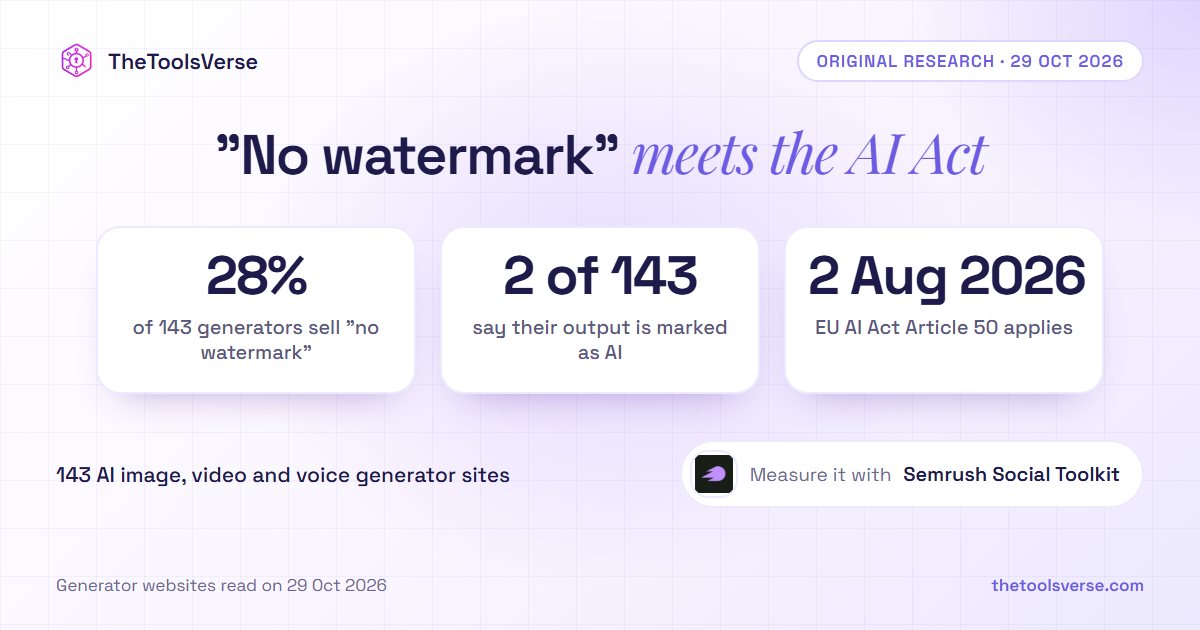
28% of AI Image, Video and Voice Generators Sell "No Watermark". 2 of 143 Tell You Their Output Is Marked as AI
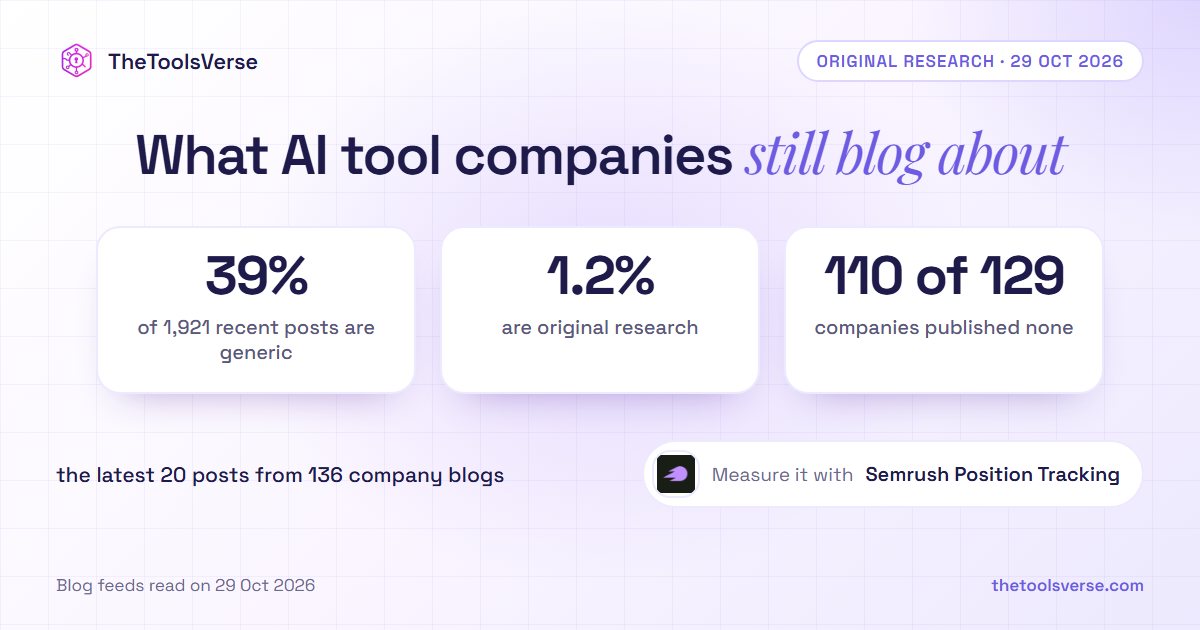
We Read 1,921 Blog Titles From 136 AI Tool Companies. 39% Are the Generic Posts AI Now Answers Itself; 1.2% Are Original Research